
Most marketplaces give you one cart. 3DSBLACK gives you as many as you need. If you juggle several projects at once — a hotel lobby this week, a residential set the next, a mood board you are still deciding on — the multi-cart system lets you keep each pile of models separate instead of one messy list you have to untangle at checkout. This guide covers everything: where the cart lives, the two ways to add a model, how named carts work, and how to check out with credits.
Where to find your cart
Your cart lives behind the basket icon in the site header. The small counter next to it shows how many models are in your active cart in real time, so you always know how much is waiting without opening the page. Clicking the icon takes you to your primary cart — the one currently marked as "in use". Every cart action requires you to be signed in.
Two ways to add a model
There are two entry points, and they behave differently on purpose.
- From a model grid — the cart icon on any product card is a one-click action. It drops the model straight into your primary cart, no questions asked. This is the fast path when you are browsing a category and grabbing everything that fits.
- From a model detail page — the "Add to cart" button opens a "Select cart" dialog with a dropdown of all your carts (your primary cart is preselected). Choose the destination, confirm, and the model lands exactly where you want it. There is also a "Buy Now" path for when you want to skip the cart and purchase a single model immediately.
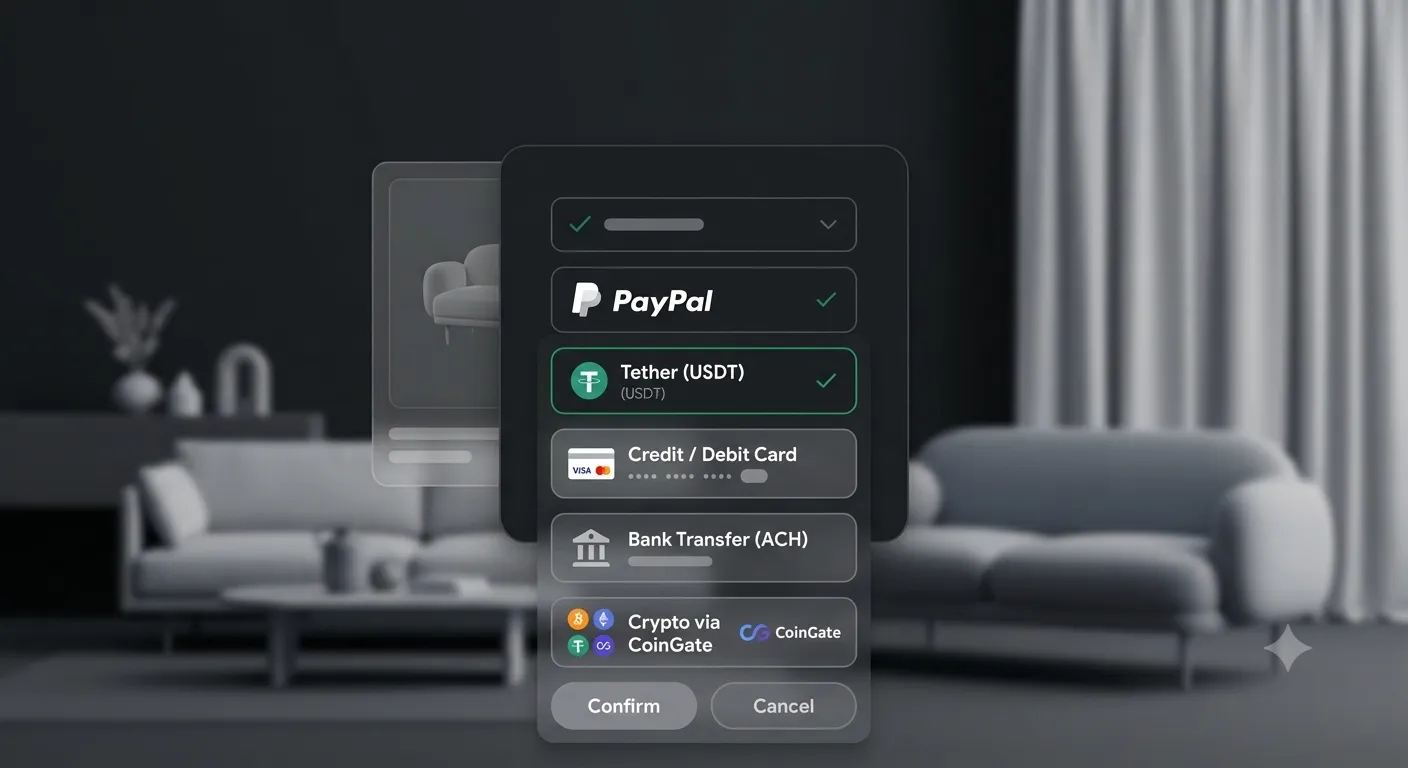
Adding is a toggle: click once to add, click again to remove. There is no quantity field — a model is either in a cart or it is not, because you only ever need one copy of a download.
What multi-cart is, and why you want it
A cart on 3DSBLACK is a named list. Every account starts with a cart called Default, and one cart is always your primary cart — the target for one-click adds and the header icon. You can create more carts and name them however your workflow demands:
- Per project — "Riverside Villa", "Downtown Office", "Cafe Concept".
- Per client — keep each client's shortlist walled off so nothing gets billed to the wrong job.
- Maybe later — a holding pen for models you like but are not ready to buy.
Create, rename, and set a primary cart
Open Manage Carts from the account area (or the "Manage carts" link on the cart page). The page explains it plainly: "You can create multiple carts and choose a primary one." Use "Create new cart", type a name in the "Enter cart name" field, and confirm — you will see a "New cart created" confirmation. Each cart in the table shows its name, the number of products, and a status.
To point one-click adds at a different list, use "Set as primary" on any cart; its status flips to "In use" and the others read "Available". "Rename" lets you relabel a cart as a project evolves, and "Delete cart" removes one you no longer need.
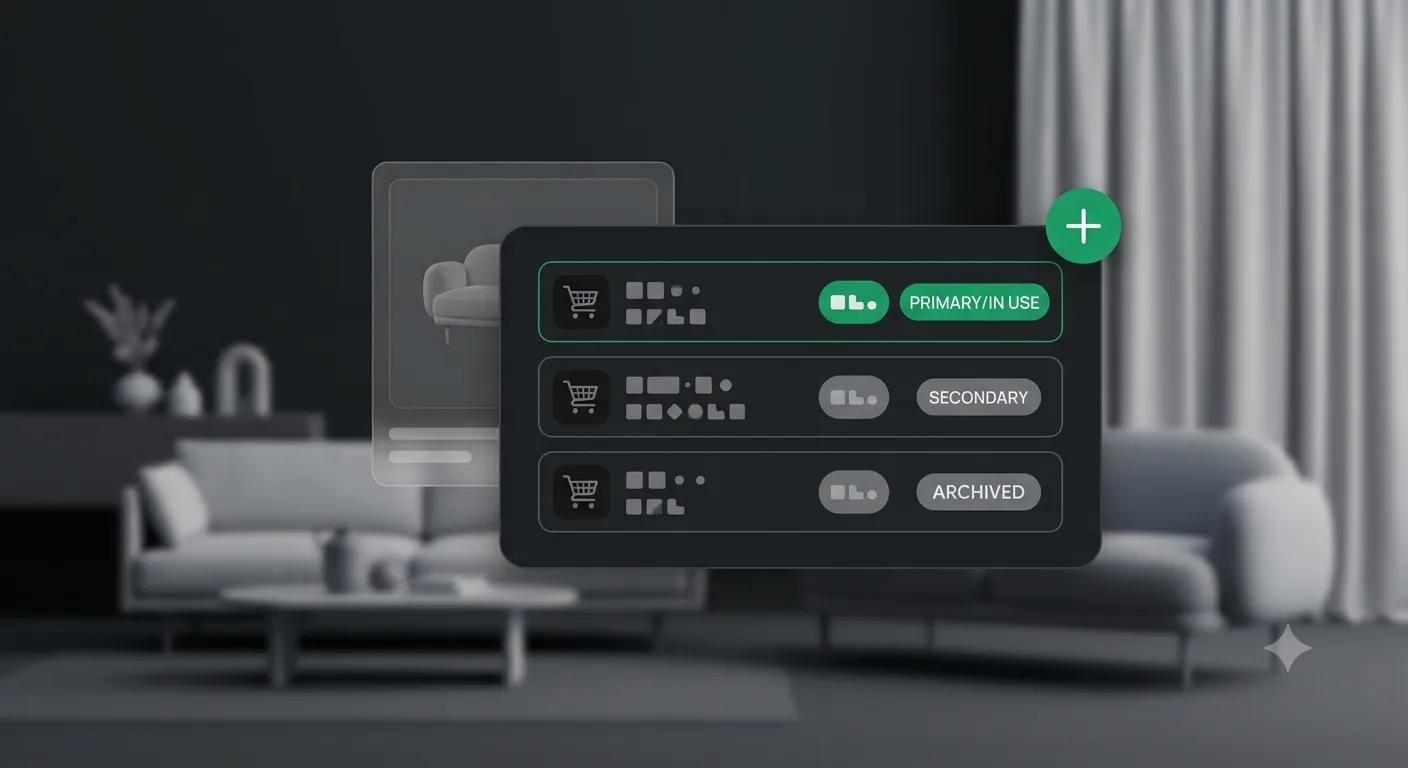
The Default cart is special: it can be emptied but never deleted. If you delete your primary cart, another cart is automatically promoted to primary so you are never left without one.
Switching between carts
On the Your Cart page there is a cart switcher at the top — a dropdown labelled "Cart" that lists every cart you own, with the primary one marked. Pick a different cart and the page reloads to show its contents. This is how you move between your "Villa" and "Office" lists in a couple of clicks without losing either.
Reviewing and checking out
The cart page is headed "Your Cart" with the subtitle "Review your selected models and check out with credits." It shows how many models are in the cart, a "Clear all" link to empty it in one action, and an order summary with Subtotal, Items, and Total — all expressed in credits (🌿). Checkout on 3DSBLACK is credit-based: the "Checkout" button spends credits from your balance.
If you do not have enough credits, the summary tells you exactly how many more you need and offers a "Buy credits" link straight to the top-up page. When the cart is empty you get a "Your cart is empty" message with a "Shop models" button to get back to browsing.
| Action | Where | Result |
|---|---|---|
| Quick add | Cart icon on a model card | Adds to your primary cart |
| Add to a chosen cart | "Add to cart" on a detail page | Opens the "Select cart" dialog |
| Create a cart | Manage Carts → "Create new cart" | New named cart |
| Set primary | Manage Carts → "Set as primary" | Redirects one-click adds |
| Switch cart | Cart switcher on Your Cart | Shows that cart's contents |
| Check out | "Checkout" on Your Cart | Spends credits, unlocks downloads |
Good things to know
- There is no quantity — each model counts as one, and add/remove is a simple toggle.
- Models you already own, product packs, and interior-design items are skipped automatically if you try to add them to a cart.
- Carts are saved to your account, so they follow you across devices and sessions.
A workflow that scales with your projects
The real payoff of multi-cart shows up when several jobs overlap. Instead of a single list where a lobby chandelier sits next to a bedroom rug and you have to remember which is which, you keep a dedicated cart per job. When a client approves a room, you open that cart, check its total in credits, and buy the set in one pass. Nothing from another project gets swept into the wrong purchase, and your order history stays readable because each checkout maps to one project.
A simple routine that works well: keep the Default cart as your scratchpad for one-click grabs while browsing, then move the keepers into a named project cart from the model detail page. Set the cart for your current active job as primary so the header icon and quick-adds always point where your attention is.
Frequently asked questions
Do my carts sync across devices?
Yes. Carts are tied to your account, not your browser, so a cart you build on your desktop is waiting for you when you sign in on a laptop.
Why can't I add a certain model to a cart?
Models you already own are skipped — there is no reason to buy a download twice. Product packs and interior-design items also follow their own purchase paths rather than the standard cart, so they will not drop into a regular cart.
How many carts should I create?
As many as your active projects need. Most people run one cart per open job plus the Default scratchpad. If a project wraps, rename or delete its cart to keep the Manage Carts list tidy.
Do items stay in my cart?
Yes — a model stays in its cart until you remove it or check out. Use "Clear all" when you want to reset a cart without deleting it.
Once you understand primary carts and the two add paths, the whole system gets out of your way and lets you shop by project. Ready to fill your first cart? Browse the full 3D model library and start grouping models the way you actually work.
