
A single flat list of "liked" models stops being useful the moment it grows past a screen. 3DSBLACK favorites work as folders instead — save each model into a named collection so a bedroom set never gets mixed up with a lobby shortlist. You can build up to ten folders, add an entire folder to a cart in one action, and share a collection with a colleague. Here is how to use all of it.
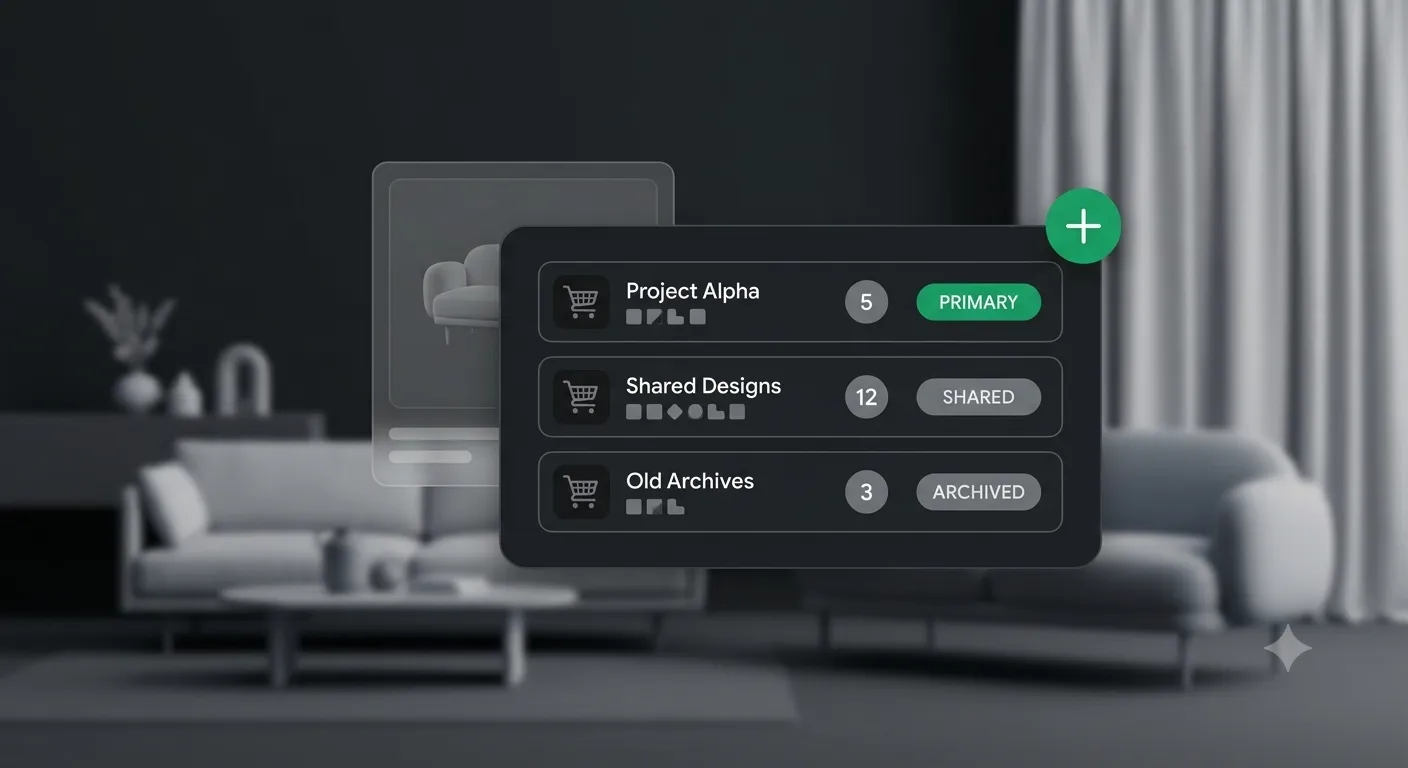
Saving your first favorite
Every model has a heart button. There are two ways to use it:
- From a model grid — tapping the heart on a product card saves the model to your Default folder instantly. It is the fast way to grab something while browsing.
- From a model detail page — the heart opens a small dropdown listing all your folders. Pick one to file the model exactly where it belongs, or use "Add folder" to jump to your favorites area and create a new one first.
Like the cart, favoriting is a toggle: tap the heart again to remove the model from that folder. The header heart icon shows a live count and links to your favorites overview.
Why folders beat a single list
Folders map to the way design work is actually organized — by room, by project, or by client. A few practical schemes:
- By space: "Living room", "Bedroom", "Office".
- By project: "Riverside Villa", "Cafe Concept".
- By intent: "Approved", "Client to review", "Inspiration".
You can keep up to ten folders per account, which is plenty to run several projects side by side without clutter.
Creating and managing folders
Open the Favorite Products page from the header heart. It shows every folder as a card with its name, how many models it holds, and when it was created. To add one, type a name in the "Enter folder name" field (the placeholder even suggests "Living room, Bedroom, Office...") and press "Create folder". Names must be between 2 and 50 characters — the page tells you if you go outside that range.
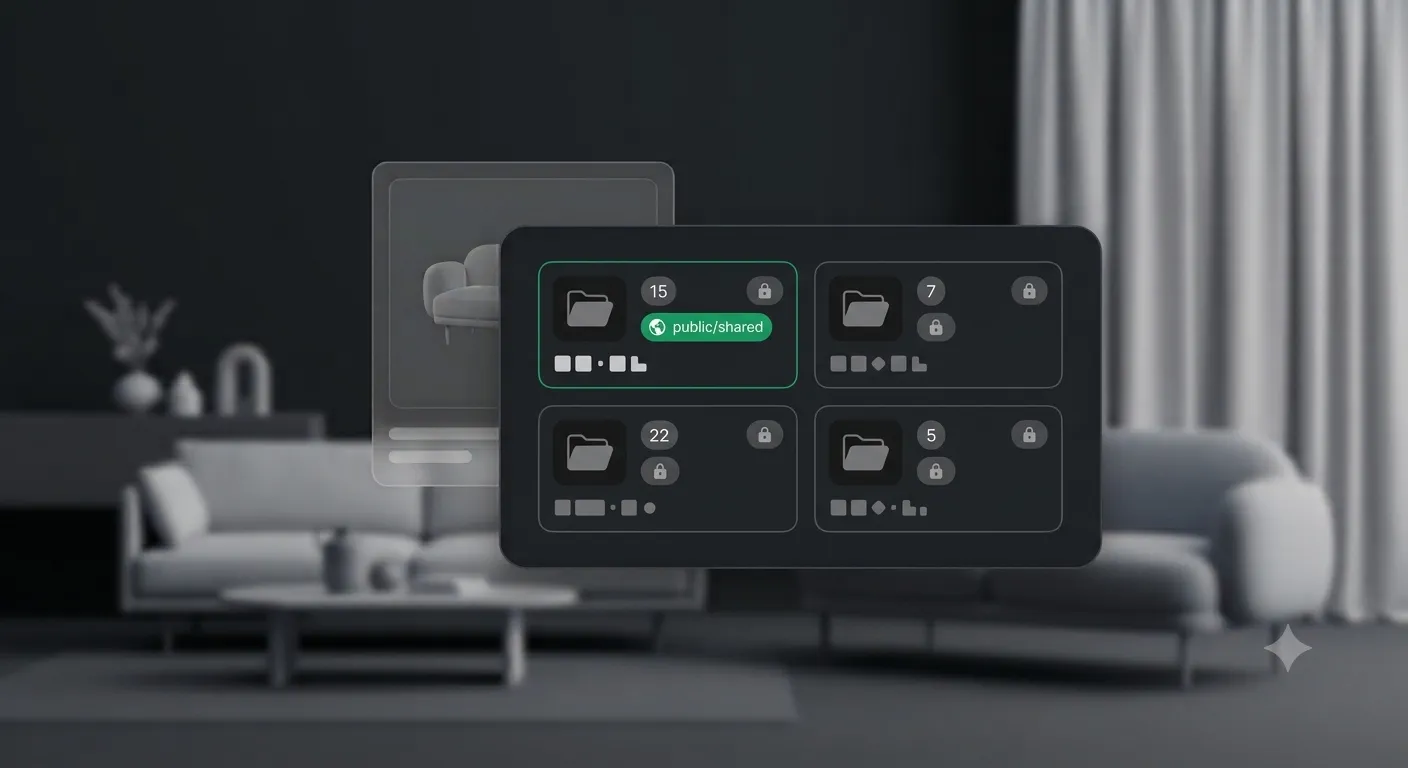
Open a folder to see the models inside. From there you can "Remove" an individual model, or "Delete folder" to clear the whole collection. As with carts, the Default folder can be emptied but never deleted, so you always have a home for quick saves.
Turning a folder into a cart
Inside any folder there is an "Add all to cart" button. It opens a dialog asking which cart to add the models to — with your primary cart preselected — so a whole shortlist becomes a ready-to-checkout cart in one click. This is where favorites and the multi-cart system meet: curate a folder over days, then drop the finished set into that project's cart when you are ready to buy.
Sharing a folder
Each folder has a share toggle. Turn it on with "Share" and the folder's status pill flips from Private to Public; a "Copy" button appears that puts the link on your clipboard (you will see a "URL has been copied to clipboard!" confirmation). Send that link to a teammate and they can open the whole collection and even add the models to their own cart. Use "Unshare" to switch sharing off again at any time.
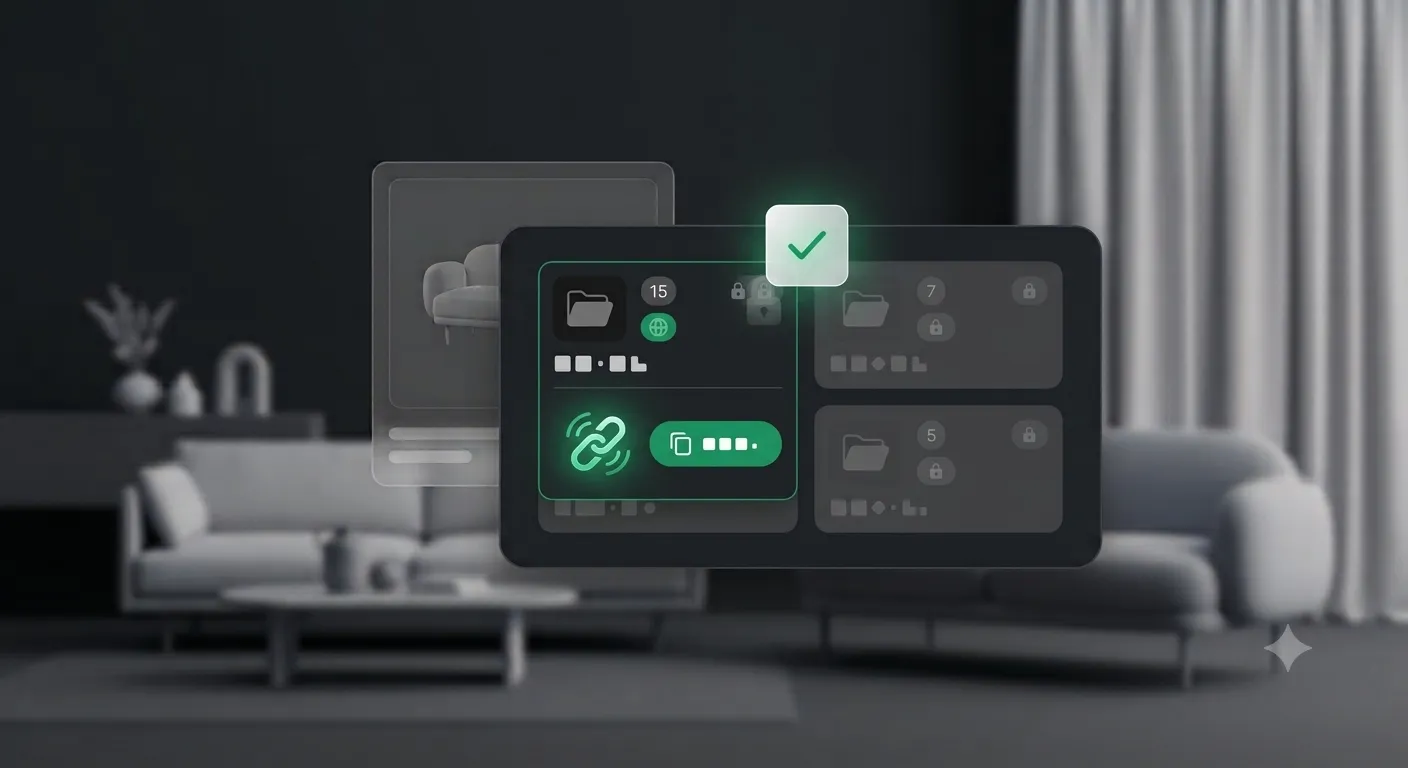
One important detail: a shared folder link is login-gated. Anyone with the link can view the folder, but only after they sign in to 3DSBLACK — it is not an anonymous public page. That keeps your collections in front of real accounts, not the open web.
| Task | Where | Result |
|---|---|---|
| Quick save | Heart on a model card | Adds to the Default folder |
| Save to a folder | Heart on a detail page | Choose the destination folder |
| New folder | Favorite Products → "Create folder" | Up to 10 folders |
| Buy a whole folder | Folder → "Add all to cart" | Fills a chosen cart |
| Share | Folder → "Share" → "Copy" | Login-gated link to the collection |
Moving a model between folders
There is no drag-and-drop between folders, but reorganizing is quick. To move a model, open its detail page and use the heart dropdown to add it to the destination folder, then remove it from the old one via that folder's page. Because a model can live in more than one folder at a time, you can also deliberately keep the same piece in both an "Inspiration" and an "Approved" folder if that suits your process.
A practical folder routine
Treat the Default folder as your inbox: heart anything interesting from the grid while you browse, without breaking your flow. Then, once a week or at the start of a project, open the Default folder and sort its contents into named folders — "Bedroom", "Client review", "Riverside Villa". When a folder is ready, either share it for feedback or push the whole thing into that project's cart. This keeps your saves from turning into an unsorted pile and makes the "add all to cart" shortcut genuinely powerful.
Frequently asked questions
How many folders can I create?
Up to ten per account. That is enough to run several projects in parallel; if you hit the limit, delete a finished folder to free a slot.
Does removing a favorite delete the model?
No. Removing a model from a folder only unfavorites it — the model stays in the library and, if you have bought it, in your purchases. Nothing you own is affected.
Who can open a folder I share?
Anyone you give the link to, but they must sign in to a 3DSBLACK account to view it. The link is not an anonymous public page, so your collection stays in front of real accounts.
Can I add someone else's shared folder to my cart?
Yes. When you open a shared folder you can add its models to your own cart and buy them yourself — handy when a colleague curates a set for you to purchase.
Put it to work
Set up a folder per active project, save as you browse, then hand the finished shortlist to a client with a share link or push it straight into a cart. It turns favoriting from a habit into a real part of your production workflow. Start building your first collection from the 3D model library.
